

Mastering App Store Visibility: A Guide to Keywords Analyzer and ASO Best Practices
Search remains one of the primary drivers of discovery on the App Store. For developers and marketers alike, getting your app in front of the right users requires a mix of clean metadata management and a data-backed App Store Optimization (ASO) strategy.
In this post, we will walk you through how to use the Keywords Performance Analyzer in StoreSync to track your rankings, and share some essential best practices for selecting keywords that help your app rank higher in search results.
The Keywords Performance Analyzer
The Keywords Performance Analyzer combines your app’s current metadata, live search rankings (up to the Top 200), and App Store autocomplete suggestions into a single workspace.
1. Adding keywords for monitoring
- Automatic Parsing: StoreSync automatically extracts keywords from your selected locale’s Name, Subtitle, and Keywords fields. These are marked with a blue Metadata badge in your table.
- Custom Tracking: Use the “Add custom word to track…” input field to monitor other search terms (such as competitor names or trial phrases) without adding them to your metadata. These are marked with a purple Track-only badge and do not affect your App Store submission.
2. Understanding the metrics
- Popularity (Search Volume): Rated from 5 to 100. This estimates daily search volume. Higher scores (closer to the green zone) mean more users search for this term.
- Difficulty (Competition): Rated from 0 to 100. This calculates the difficulty of breaking into the Top 10 based on the ranking power (ratings and brand strength) of the currently ranking apps. Lower difficulty (closer to the green zone) is easier to target.
- Position: Your app’s current organic ranking for that keyword.
- Trend: The ranking change relative to your last recorded position change.
- Apps in Ranking: Icons of the top-ranking apps for this query.
3. Interactive tools
- Expandable Autocomplete Suggestions: Click the chevron next to any keyword to view live search suggestions from Apple. Click + on any suggestion to instantly append it to your metadata’s Keywords field.
- Rank History Popover: Click on the trend value or sparkline chart to display a popover with a chronological position graph (dates vs. rank position) to study your rankings over time.
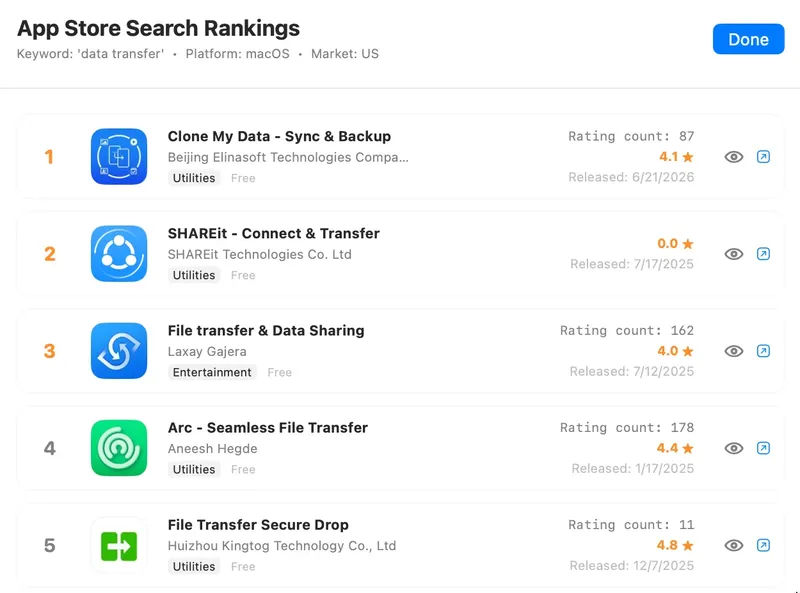
- Search Results Inspector: Click on the top-ranking app icons to open a detailed list of the Top 200 apps for this query.
- Competitor Keywords Spy (Peep): Inside the search results inspector, click the “eye” icon next to any competing app. StoreSync will scan the competitor’s public listing, extract candidate keywords, and show you their estimated popularity and difficulty.
ASO best practices: selecting keywords
Selecting keywords for your app’s metadata is a balancing act between search volume, competition, and relevancy.
1. Understanding metadata indexing priority
The App Store search algorithm indexes metadata fields with different priority weights:
- App Name: Holds the highest indexing weight. Place your 1 or 2 most critical, high-volume keywords here (e.g., StoreSync: Metadata Manager).
- Subtitle: Holds the second-highest weight. Use this for descriptive, high-value auxiliary search terms (e.g., ASC Sync & ASO Rank Tracker).
- Keywords Field (100 characters): Holds normal indexing weight. This is where you put your comma-separated list of individual terms.
- App Description: Not indexed for organic searches inside the App Store. While important for web search engine indexing (SEO) and user conversions, the App Store’s internal search algorithm does not use it to rank search queries.
2. The “ASO Sweet Spot” (Popularity vs. Difficulty)
- For New or Low-Authority Apps: Do not immediately target highly competitive keywords (Difficulty > 50), even if they have immense popularity. Your app will likely end up buried. Instead, target longer, more specific phrases (long-tail keywords), like “focus study timer” instead of “timer.” Look for terms with moderate popularity (20–40) and low difficulty (below 30–35).
- For Established Apps: As your app gains historical performance data, active downloads, and star ratings, Apple’s algorithm will grant it higher authority. At this stage, you can gradually replace lower-difficulty keywords with more competitive terms.
3. Essential rules for the 100-character Keywords field
- Separate with Commas Only, No Spaces: Spaces count toward your 100-character limit. Write
focus,timer,productivityinstead offocus, timer, productivity. - Avoid Duplication: Do not repeat words that are already in your App Name or Subtitle. Apple’s search index automatically combines words across your Title, Subtitle, and Keywords fields. Repeating them simply wastes precious space.
- Use Singular Forms: The App Store’s search engine is smart enough to handle singular and plural forms automatically in most major languages. Sticking to singular forms (e.g.,
timerinstead oftimers) saves character space. - Omit Stop Words and Filler Words: Do not waste space on prepositions, conjunctions, or generic terms like
and,the,with,app, orfree. These are either ignored or automatically accounted for by the algorithm.
4. Leverage cross-localization
The App Store indexes secondary languages in many countries. You can use these secondary localizations to multiply your available keyword space:
- In the US storefront, both English (US) and Spanish (Mexico) are indexed. By placing completely different English or Spanish keywords in your Spanish (MX) localization, you can target double the terms in the US.
- In European storefronts (such as Germany), the App Store often indexes both the local language (German) and English (UK).
Using secondary localizations allows you to widen your net and target a much broader range of organic search terms.